Page 1 of 2
Install Splash Screen
Posted: Fri Nov 11, 2011 2:14 pm
by rxelizondo
When my install starts up, the first thing that pops-up is a splash screen that says:
InstallAware is preparing the InstallAware Wizard which will install this application. Please wait.
Is there any way to get rid of that splash screen? If is not possible to do that, is it at least possible to style it? The problem is that the default popup-screen is blue and it completely clashes with the rest of my setup dialog theme colors.
Thanks.
Re: Install Splash Screen
Posted: Sat Nov 12, 2011 11:30 pm
by rxelizondo
By the way, I tried adding a “setup.bmp” to the “SupportsFiles” and after doing so the installer stopped working.
Thanks.
Re: Install Splash Screen
Posted: Mon Nov 14, 2011 8:22 am
by giaviv
Hi,
Could you please attach the setup.bmp file you are using here?
Re: Install Splash Screen
Posted: Mon Nov 14, 2011 6:53 pm
by rxelizondo
Ok, there is nothing to the setup.bmp file, is just gibberish I was using to test the feature.
Re: Install Splash Screen
Posted: Tue Nov 15, 2011 11:22 am
by giaviv
Hi,
This is simply because your BMP is of 24-bit dept. Try saving it as 16/32/256 bit depths and you will be fine.
Re: Install Splash Screen
Posted: Tue Nov 15, 2011 8:48 pm
by rxelizondo
Ok, that worked, however for the record this is what is stated on the documentation:
To display a splash screen while the installation is initializing, simply create a .BMP file and add it to the setup. All bitmap types at all color resolutions are supported; however you may want to keep to 256 colors on your bitmap in consideration of older systems with graphics cards that cannot display higher resolutions.
Perhaps I am missing something but I don't see anywhere there where it says that it can't be a 24-bit color .
Re: Install Splash Screen
Posted: Wed May 30, 2012 7:07 pm
by tofutim
In case anyone runs into this, adding setup.bmp does not remove the "preparing" message box. However, you can change the icon by adding a custom "installaware.png" so at least the message box icon does not clash with your theme. Doesn't seem like you can actually change the border.
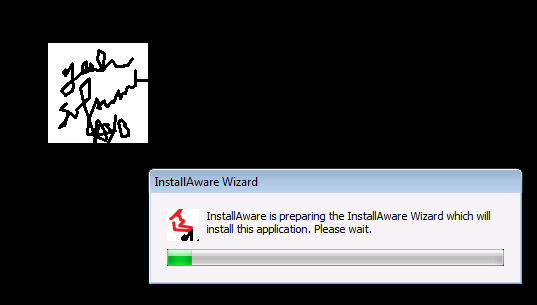
- installaware.png (8.97 KiB) Viewed 19320 times
If someone finds away to remove the "preparing" box, hints would be much appreciated.
Cheers,
Tim
P.S. Interestingly, if your machine is slow enough, you'll actually see the installaware logo turn into your logo.

Re: Install Splash Screen
Posted: Thu May 31, 2012 8:23 am
by FrancescoT
Dear tofutim,
Unfortunately, it is not possible to remove it.
Regards
Re: Install Splash Screen
Posted: Tue Jun 05, 2012 7:48 am
by alibaba
You could edit the dialog with ressource hacker or something like this.
dependent.exe contains this dialog afaik.
Re: Install Splash Screen
Posted: Tue Jun 05, 2012 8:00 am
by FrancescoT
... or Visual Studio Resource editor.
Re: Install Splash Screen
Posted: Fri Jun 08, 2012 11:48 am
by tofutim
Following this trail... looks like winres.exe only edits .resx or .resources file. How do I edit that .exe file?
Re: Install Splash Screen
Posted: Fri Jun 08, 2012 12:33 pm
by tofutim
I ended up using Resource Hacker on dependent.exe. However, the "preparing" dialog is not stored there (although some other are).
Re: Install Splash Screen
Posted: Fri Jun 08, 2012 12:41 pm
by FrancescoT
Dear User,
I just used Visual Studio resource editor and I can confirm that dialog is part of "dependent.exe" along with the password dialog.
Regards
Re: Install Splash Screen
Posted: Fri Jun 08, 2012 12:52 pm
by tofutim
Francesco, can you advise? Is that winres.exe you are using (the localization resource editor)? How do I open the resource from the exe with Visual Studio resource editor.
From Resource Hacker, I see the dialogs 500 and 501 in dependent.exe. Maybe Preparing is the Extracting dialog?
500 DIALOGEX 0, 0, 205, 73
STYLE DS_MODALFRAME | DS_CENTER | WS_POPUP | WS_CAPTION | WS_SYSMENU
EXSTYLE WS_EX_APPWINDOW
CAPTION "Progress"
LANGUAGE LANG_NEUTRAL, SUBLANG_NEUTRAL
FONT 8, "Tahoma"
{
CONTROL "&Cancel", 2, BUTTON, BS_PUSHBUTTON | WS_CHILD | WS_VISIBLE | WS_TABSTOP, 147, 52, 50, 14
CONTROL "Extracting the files that will install this application. This may take a few seconds...", 999, STATIC, SS_LEFT | WS_CHILD | WS_VISIBLE | WS_GROUP, 35, 12, 161, 17
CONTROL "IDI_ICON3", 101, STATIC, SS_ICON | WS_CHILD | WS_VISIBLE, 7, 9, 20, 20
CONTROL "", 1000, "msctls_progress32", WS_CHILD | WS_VISIBLE, 7, 35, 190, 9
}
501 DIALOGEX 0, 0, 172, 73
STYLE DS_SYSMODAL | DS_FIXEDSYS | DS_MODALFRAME | DS_CENTER | WS_POPUP | WS_CAPTION | WS_SYSMENU
CAPTION "Installation Wizard"
LANGUAGE LANG_NEUTRAL, SUBLANG_NEUTRAL
FONT 8, "Tahoma"
{
CONTROL "This installation is password protected. Please &enter the password to start setup:", 1000, STATIC, SS_LEFT | WS_CHILD | WS_VISIBLE | WS_GROUP, 31, 11, 134, 18
CONTROL "", 1001, EDIT, ES_LEFT | ES_PASSWORD | ES_AUTOHSCROLL | WS_CHILD | WS_VISIBLE | WS_BORDER | WS_TABSTOP, 6, 32, 159, 14
CONTROL "&OK", 1, BUTTON, BS_DEFPUSHBUTTON | WS_CHILD | WS_VISIBLE | WS_TABSTOP, 59, 52, 50, 14
CONTROL "&Cancel", 2, BUTTON, BS_PUSHBUTTON | WS_CHILD | WS_VISIBLE | WS_TABSTOP, 115, 52, 50, 14
CONTROL "IDI_ICON3", 101, STATIC, SS_ICON | WS_CHILD | WS_VISIBLE, 6, 7, 21, 20
}
Re: Install Splash Screen
Posted: Mon Jun 11, 2012 7:56 am
by FrancescoT
Dear User,
From Visual Studio File menù, select Open File. Once you selected your file, from the Open button "down arrow", choose how to open it by selecting "Resource Editor" from the dialog options.
Note, I use VC C++ with my Visual Studio installation ... honestly, I do not know if VC++ it is required in order to have Resource Editor tool available.
Regards